Have you ever recorded a special moment or downloaded a video only to discover that it looks blurry, blocky, and full of ugly squares? Pixelation can ruin the viewing experience, making even high-resolution videos appear low quality. Fortunately, understanding how to fix pixelated video can help you improve clarity, reduce visual distortion, and make your footage look much better.
Pixelated videos can happen for many reasons, including low resolution, excessive compression, poor recording settings, or damaged files. In this guide, you’ll learn the most effective methods to repair pixelated videos, improve video quality, and prevent the issue from happening in the future.
What Is a Pixelated Video?
A pixelated video is a video where individual pixels become visible, creating a blocky or blurry appearance. Instead of smooth details, the image may look like a collection of large squares.
Common signs of video pixelation include:
- Blurry faces and objects
- Blocky areas during movement
- Loss of fine details
- Distorted colors or sharp edges
- Poor image clarity after uploading or downloading
The severity of pixelation depends on the original video quality and the amount of data lost during compression.
Causes of Pixelated Videos
Before learning how to repair a pixelated video, it helps to understand what caused the problem.
1. Low Video Resolution
Videos recorded in low resolutions such as 240p or 360p contain fewer pixels. When stretched to fit larger screens, they often become blurry and pixelated.
2. Excessive Compression
Social media platforms and messaging apps compress videos to reduce file sizes. Too much compression removes visual information, resulting in visible blocks and artifacts.
3. Poor Recording Conditions
Low lighting, camera movement, and incorrect camera settings can cause grainy and pixelated footage.
4. Corrupted Video Files
A damaged video file may display missing frames, unusual artifacts, or severe pixelation.
How to Fix Pixelated Video Using Video Enhancement Software
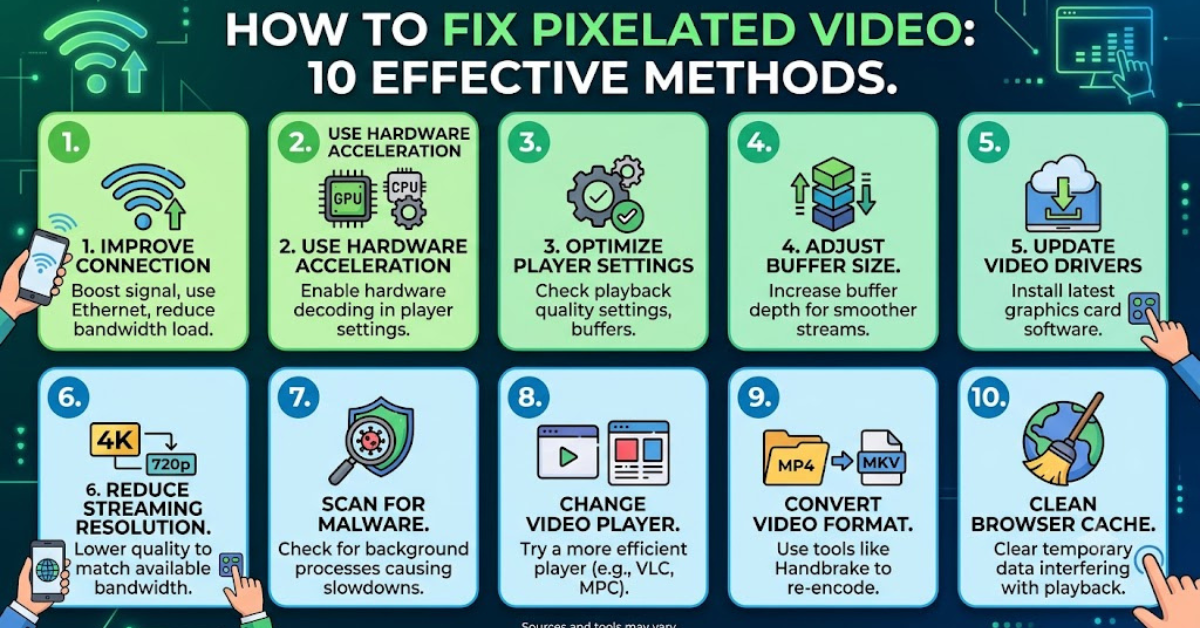
One of the most effective ways to fix a pixelated video is by using dedicated video enhancement software. These tools use advanced algorithms and AI technology to improve sharpness and recover details.
Popular options include:
- Adobe Premiere Pro – Offers sharpening, noise reduction, and professional editing tools.
- DaVinci Resolve – Provides powerful color correction and video enhancement features.
- Topaz Video AI – Uses artificial intelligence for upscaling and detail enhancement.
- Wondershare Repairit – Helps repair damaged or corrupted video files.
Most programs allow you to adjust settings like:
- Sharpness
- Contrast
- Noise reduction
- Resolution scaling
- Color balance
Use moderate adjustments because too much sharpening can make a video look unnatural.
Increase Video Resolution With AI Upscaling
AI video upscaling has become one of the best solutions for improving low-quality videos.
AI tools analyze each frame, predict missing details, and increase the resolution. For example, a 480p video can sometimes be enhanced to 720p or 1080p with better clarity.
AI upscaling works especially well for:
- Old family videos
- Low-resolution recordings
- Videos downloaded from older devices
- Archive footage
Keep in mind that AI can improve the appearance of a video, but it cannot perfectly recreate details that were never captured.
Adjust Sharpness and Reduce Noise
If the pixelation is mild, simple editing adjustments may help.
Try these improvements:
- Increase sharpness slightly.
- Reduce digital noise and grain.
- Adjust brightness and contrast.
- Improve color correction.
- Apply anti-aliasing or smoothing filters.
Small changes often produce the most natural-looking results.
Repair Corrupted Pixelated Video Files
Sometimes pixelation is caused by a damaged file rather than poor quality.
To repair corrupted videos:
- Create a backup of the original file.
- Use a video repair application.
- Scan the file for errors.
- Export the repaired video in a high-quality format.
Common formats such as MP4, MOV, and AVI can often be repaired using specialized software.
Re-Export the Video With Better Settings
If you have the original editing project, export the video again using higher-quality settings.
Recommended export practices include:
- Choose a higher bitrate.
- Use a modern codec like H.264 or H.265.
- Match the original frame rate.
- Export at the highest available resolution.
Higher bitrate settings preserve more details and reduce compression artifacts.
How to Prevent Videos From Becoming Pixelated
Prevention is always easier than repair. Follow these tips to maintain better video quality:
Record in High Resolution
Use 1080p, 4K, or the highest resolution available on your camera.
Ensure Good Lighting
Bright environments allow cameras to capture more details and reduce digital noise.
Avoid Multiple Compression Cycles
Repeatedly uploading, downloading, and re-saving videos reduces quality over time.
Use High-Quality Storage Devices
Faulty memory cards and damaged drives can lead to corrupted video files.
Keep the Original File
Always save an untouched copy of your video before editing or sharing.
Best Apps to Fix Pixelated Videos on Mobile
If you want to improve videos directly on your phone, try these apps:
Android Apps
- CapCut
- VN Video Editor
- Adobe Premiere Rush
- AI Video Enhancer apps
iPhone Apps
- iMovie
- Adobe Premiere Rush
- Videoshop
- Remini Video Enhancer
These apps offer tools for sharpening, improving colors, and increasing video quality.
Can You Completely Fix a Pixelated Video?
The answer depends on how much information was lost. Slightly pixelated videos can often be improved significantly with AI enhancement and editing tools.
However, extremely low-quality videos may never look like true HD or 4K footage because the original details no longer exist. The goal is to make the video clearer and more pleasant to watch rather than creating perfect quality.
FAQs About How to Fix Pixelated Video
Why does my video look pixelated?
Videos become pixelated due to low resolution, heavy compression, poor recording conditions, or file corruption.
Can AI fix a pixelated video?
Yes. AI video enhancement tools can improve sharpness, reduce noise, and upscale resolution. The results depend on the original video quality.
How can I fix a pixelated video for free?
Free tools like DaVinci Resolve, CapCut, and some online video enhancers can reduce pixelation and improve appearance.
Does increasing resolution fix pixelation?
Increasing resolution alone does not add real detail. AI upscaling and enhancement provide better results than simply stretching a video.
Why do videos become pixelated after uploading?
Many platforms compress videos to save storage and bandwidth, which can lower bitrate and create compression artifacts.
Conclusion
Learning how to fix pixelated video can save important recordings and improve the overall viewing experience. Whether the problem comes from low resolution, heavy compression, or file corruption, solutions such as AI video enhancement, professional editing software, and proper export settings can make a noticeable difference.
For the best results, start with the highest-quality original file, use reliable video enhancement tools, and avoid unnecessary compression. With the right approach, even old or blurry videos can become clearer and more enjoyable to watch.