You sit down to stream a movie, join a work meeting, or browse the internet, only to notice a mysterious blue flashing light on your Xfinity modem. Is your internet down? Is the modem broken? Or is it simply updating?
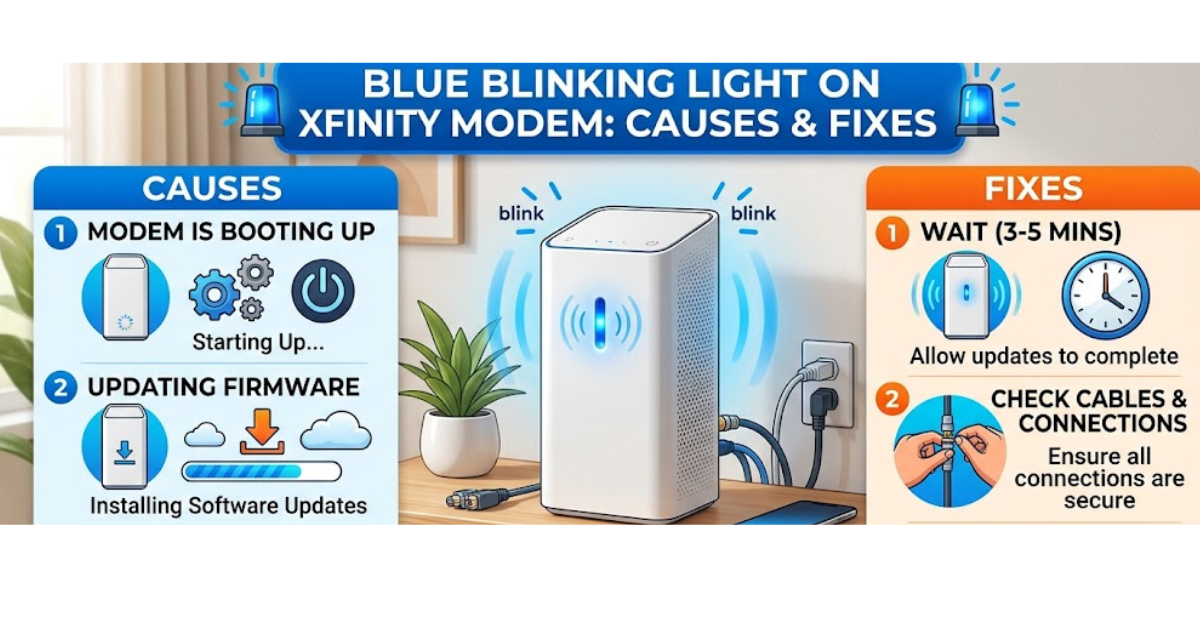
A blue blinking light on Xfinity modem devices usually indicates that the modem is attempting to establish a connection with the Xfinity network. In many cases, it’s a temporary process, but if the light continues blinking for an extended period, it may signal a connection or setup issue.
In this guide, you’ll learn what the blue blinking light means, the common reasons it happens, practical troubleshooting steps, and when it’s time to contact Xfinity support.
Understanding the Blue Light on an Xfinity Modem
Xfinity modems and gateways use LED indicator lights to communicate their current status. These lights can change colors or blink in different patterns depending on what the device is doing.
A blue blinking light generally means the modem is trying to connect through the WPS (Wi-Fi Protected Setup) process or establish a secure wireless connection, depending on the Xfinity gateway model.
Typically:
- Solid blue light: A successful WPS connection has been established.
- Blinking blue light: The device is searching for a WPS-compatible device or attempting a connection.
- White light: The modem is powered on and functioning normally on many newer Xfinity gateways.
- Red or orange light: May indicate connectivity or signal problems.
Understanding the exact behavior of the light is the first step toward identifying the right solution.
Why Is the Blue Light Blinking on My Xfinity Modem?
Several situations can cause a blinking blue indicator. Some are harmless, while others require troubleshooting.
WPS Mode Was Accidentally Activated
One of the most common reasons is that the WPS button was pressed accidentally.
WPS allows you to connect devices like smartphones, printers, or smart TVs to your Wi-Fi without entering the password. When activated, the modem’s blue light flashes while it searches for a compatible device.
If no device connects within a few minutes, the WPS process usually times out automatically.
Temporary Network Communication Issue
Sometimes the gateway has trouble communicating with the Xfinity network due to:
- Temporary service outages
- Signal interruptions
- Cable connection problems
- Maintenance work in your area
The modem may continue showing a blinking light while it tries to restore communication.
Firmware Update or Device Restart
Xfinity gateways periodically receive automatic firmware updates to improve security and performance.
During updates or restarts, the LED lights may blink or change colors while the modem completes its internal processes.
Loose or Damaged Cables
A simple physical issue can also interrupt connectivity.
Check the following connections:
- Coaxial cable connected to the wall outlet
- Power adapter connection
- Ethernet cables attached to devices
A loose cable can prevent the gateway from maintaining a stable connection.
How to Fix a Blue Blinking Light on Xfinity Modem
If the light does not stop blinking after several minutes, try these troubleshooting methods.
1. Wait a Few Minutes
If you recently pressed the WPS button or restarted the modem, give it around 2 to 5 minutes.
The modem may complete the pairing process or reconnect automatically.
2. Restart Your Xfinity Modem
A simple restart resolves many temporary glitches.
Follow these steps:
- Unplug the modem’s power cable.
- Wait for 60 seconds.
- Plug the power cable back in.
- Allow the modem 5–10 minutes to fully restart.
Check whether the light returns to its normal color afterward.
3. Cancel WPS Mode
If the blinking started after pressing the WPS button, you can stop the process by:
- Pressing the WPS button again (on supported models), or
- Waiting for the WPS timeout period to end.
Once canceled, the light should return to its normal state.
4. Inspect All Cable Connections
Make sure:
- The coaxial cable is tightly screwed into the modem.
- The power adapter is firmly connected.
- There is no visible damage to cables or connectors.
Replacing a damaged cable can often solve intermittent connectivity problems.
5. Check for Xfinity Service Outages
If your modem appears to be working but cannot connect, there may be a service interruption in your neighborhood.
Checking your account through the Xfinity app or service status tools can help determine whether an outage is responsible.
6. Perform a Factory Reset
If other solutions fail, resetting the modem can restore default settings.
To reset:
- Locate the small reset button on the back of the gateway.
- Press and hold it for about 30 seconds.
- Wait for the modem to reboot.
Keep in mind that a factory reset removes customized settings, including your Wi-Fi name and password if they were changed manually.
How Long Should a Blue Blinking Light Last?
In normal situations, a blinking blue indicator should only last a few minutes.
For example:
- WPS pairing: Usually 2–5 minutes
- Modem reboot: Around 5–10 minutes
- Network reconnection: Varies depending on the issue
If the light keeps blinking for more than 15–20 minutes, further troubleshooting is usually required.
When to Contact Xfinity Support
You should contact Xfinity customer support if:
- The modem has been blinking blue for over 20 minutes.
- You have no internet connection after restarting.
- The modem frequently enters a blinking state.
- Cables and home troubleshooting do not solve the problem.
Support can check your line signal, refresh your modem remotely, or determine whether the equipment needs replacement.
Tips to Prevent Xfinity Modem Connection Issues
Keeping your equipment in good condition can reduce future problems.
Helpful tips include:
- Place the modem in a well-ventilated, central location.
- Avoid pressing the WPS button unless needed.
- Keep cables secure and undamaged.
- Restart the modem occasionally if performance slows.
- Make sure your gateway receives automatic software updates.
Small maintenance habits can improve the stability of your home internet connection.
Key Takeaways
- A blinking blue light usually relates to WPS pairing or connection attempts.
- A solid blue light often indicates a successful WPS connection.
- Restarting the modem and checking cables are the quickest fixes.
- A blinking light lasting more than 15–20 minutes may indicate a deeper problem.
- Xfinity support can help diagnose network or equipment issues.
Frequently Asked Questions
Why is my Xfinity modem flashing blue but not connecting to the internet?
A flashing blue light often means the modem is in WPS mode or attempting a connection. If it continues for a long time, restart the device and check for network issues.
How do I stop the blue blinking light on my Xfinity modem?
You can stop it by completing or canceling the WPS process, waiting for the timeout, or restarting the modem if the light is caused by a temporary error.
Is a blue flashing light on an Xfinity modem a bad sign?
Not necessarily. A blue flashing indicator is usually a normal status signal during pairing or connection attempts. It only becomes concerning if it remains for an unusually long period.
Why does my Xfinity modem keep going into blue blinking mode?
Repeated blue blinking may happen because the WPS button is being triggered, the modem is experiencing connectivity problems, or there is a hardware issue.
Should I reset my Xfinity modem if the blue light keeps blinking?
A factory reset can help if restarting and checking cables do not fix the problem. However, it should generally be used as a last troubleshooting step.
Conclusion
A blue blinking light on Xfinity modem devices is usually not a reason to panic. In most cases, it simply means the gateway is in WPS pairing mode or trying to establish a connection. Simple actions like waiting a few minutes, restarting the modem, or checking cable connections often solve the issue.
If the light continues blinking for an extended period and your internet remains unavailable, a deeper network or hardware problem may be involved. Use the troubleshooting steps in this guide to identify the cause and restore your connection quickly.