You’re in the middle of an important conversation, catching up with family, or attending a virtual meeting when suddenly your FaceTime call ends without warning. If you’ve found yourself wondering, “why does my phone keep hanging up on FaceTime?”, you’re not alone.
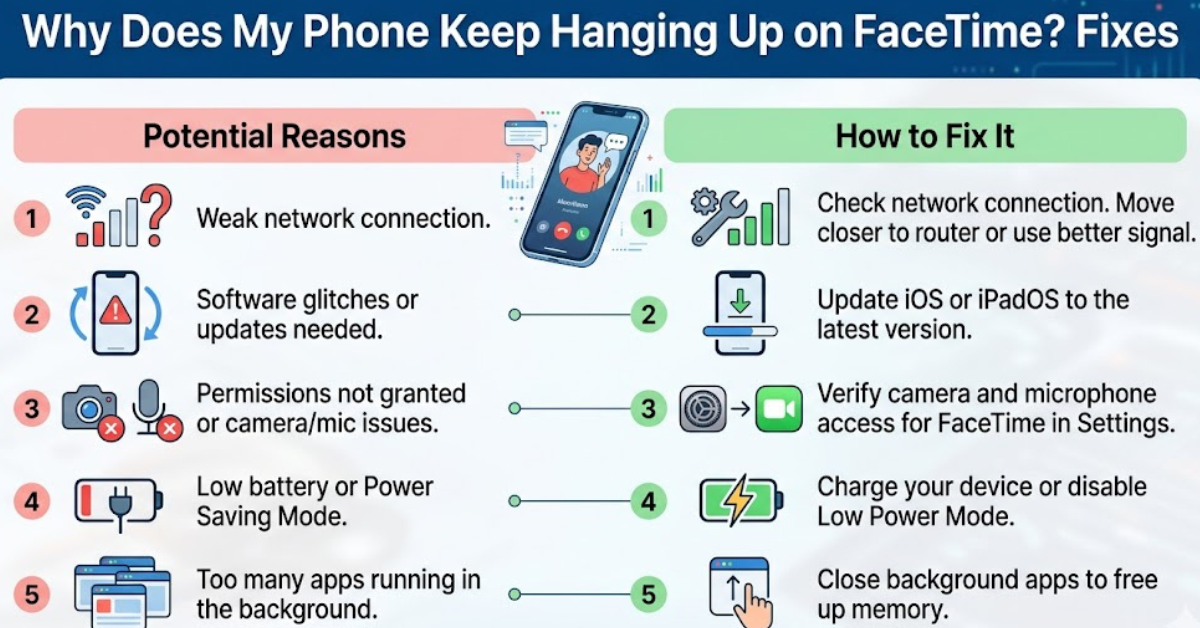
FaceTime dropping calls can happen for several reasons, including a weak internet connection, software glitches, incorrect settings, or issues with Apple’s servers. In this guide, you’ll learn the most common causes of FaceTime calls disconnecting and the practical steps you can take to fix the problem and enjoy smoother video calls.
Common Reasons Your Phone Keeps Hanging Up on FaceTime
FaceTime relies on several components working together, including your internet connection, iPhone software, Apple ID, and device hardware. A problem with any of these areas can cause your calls to unexpectedly end.
Poor Wi-Fi or Cellular Connection
The most frequent reason FaceTime hangs up is an unstable internet connection. FaceTime requires a steady flow of data to maintain both audio and video.
Signs your network may be the problem include:
- Calls dropping after a few seconds or minutes
- Frozen video before disconnection
- Delayed audio
- “Poor Connection” messages
How to fix it:
- Move closer to your Wi-Fi router.
- Switch between Wi-Fi and cellular data to test which works better.
- Turn Airplane Mode on and off to refresh your connection.
- Restart your router if other devices also have internet issues.
Check Whether FaceTime Is Experiencing Server Issues
Sometimes the problem isn’t your phone at all. Apple’s FaceTime services can occasionally experience temporary outages.
If many users are reporting FaceTime problems at the same time, waiting until Apple resolves the issue may be the only solution.
Outdated iOS Software Can Cause FaceTime Problems
Apple regularly releases iOS updates that fix bugs, improve security, and enhance FaceTime performance.
Update Your iPhone
To check for updates:
- Open Settings.
- Tap General.
- Select Software Update.
- Install any available update.
Keeping your iPhone updated can resolve unexpected FaceTime call failures caused by software bugs.
Restart Your iPhone
A simple restart can clear temporary glitches that interfere with apps and system processes.
Steps to restart your iPhone
- Press and hold the power button and either volume button (on most newer iPhones).
- Slide to power off.
- Wait around 30 seconds.
- Turn your device back on.
After restarting, try making another FaceTime call to see whether the issue is resolved.
Verify That FaceTime Is Enabled Correctly
Improper FaceTime settings may cause connection issues.
Check FaceTime settings
- Open Settings.
- Scroll down and tap FaceTime.
- Make sure the FaceTime switch is turned on.
- Confirm your phone number and Apple ID email are selected under “You Can Be Reached By FaceTime At.”
You can also turn FaceTime off, wait a few seconds, and turn it back on to refresh the service.
Low Device Storage or Performance Issues
Your iPhone needs enough free storage and system resources to run apps smoothly.
Free up storage space
Go to:
Settings → General → iPhone Storage
Consider removing:
- Unused apps
- Large videos and photos
- Downloaded files you no longer need
Although storage issues don’t always cause FaceTime calls to disconnect, they can contribute to poor device performance.
Disable Low Power Mode
Low Power Mode reduces background activities to save battery life. In some cases, it may affect network performance and app behavior.
To disable it:
- Open Settings.
- Tap Battery.
- Turn off Low Power Mode.
Then test FaceTime again.
Reset Network Settings
If your iPhone has persistent connection problems, resetting your network settings may help.
How to reset network settings
- Open Settings.
- Tap General.
- Select Transfer or Reset iPhone.
- Tap Reset.
- Choose Reset Network Settings.
Keep in mind that this removes saved Wi-Fi passwords and Bluetooth connections.
Check Date and Time Settings
Incorrect date and time settings can sometimes interfere with Apple services.
To correct them:
- Open Settings.
- Tap General.
- Select Date & Time.
- Turn on Set Automatically.
FaceTime Keeps Hanging Up With One Person Only
If FaceTime disconnects only when calling a specific contact, the issue may be on their side.
Ask them to check:
- Their internet connection
- FaceTime settings
- iOS updates
- Device storage
Testing FaceTime with another person can help determine whether the problem is your phone or theirs.
Why Does My FaceTime Keep Ending After a Few Seconds?
If your FaceTime calls end immediately or after a short time, common causes include:
- Weak Wi-Fi signal
- Cellular data restrictions
- Temporary FaceTime activation issues
- Apple ID authentication problems
- Software glitches
Signing out of your Apple ID and signing back in may refresh FaceTime services if other fixes have not worked.
Advanced Troubleshooting for Persistent FaceTime Problems
If you still ask yourself, “why does my phone keep hanging up on FaceTime even after trying basic fixes?”, consider these advanced solutions.
Remove and Re-add FaceTime Activation
Turn FaceTime off in Settings, restart your iPhone, and turn it back on. This forces your device to reactivate the service.
Reset All Settings
This restores system settings without deleting your personal data.
Go to:
Settings → General → Transfer or Reset iPhone → Reset → Reset All Settings
Quick Summary: How to Stop FaceTime From Hanging Up
Here are the most effective solutions:
- Check your Wi-Fi or cellular signal.
- Restart your iPhone.
- Update to the latest iOS version.
- Verify FaceTime settings and Apple ID information.
- Disable Low Power Mode.
- Free up storage space.
- Reset network settings.
- Check whether Apple services are experiencing issues.
Frequently Asked Questions
Why does my iPhone keep hanging up during FaceTime calls?
Your iPhone may disconnect FaceTime calls because of poor internet, outdated iOS software, incorrect settings, or temporary software errors. Checking your connection and updating your device often solves the issue.
Why does FaceTime end by itself after a few minutes?
FaceTime may end automatically when your Wi-Fi or cellular signal becomes unstable. Background software issues or network interruptions can also cause calls to drop.
Can Low Power Mode cause FaceTime to disconnect?
Low Power Mode usually does not directly turn off FaceTime, but it may reduce certain background functions and affect overall device performance. Turning it off can help during troubleshooting.
Why does FaceTime keep hanging up even with good Wi-Fi?
If your internet seems strong but calls still disconnect, try updating iOS, restarting your device, checking FaceTime activation, or resetting your network settings.
Does restarting an iPhone fix FaceTime problems?
Yes, restarting your iPhone can remove temporary glitches that may interfere with FaceTime, making it one of the simplest and most effective troubleshooting steps.
Conclusion
Experiencing repeated dropped calls can be frustrating, especially when you rely on FaceTime to stay connected. The answer to “why does my phone keep hanging up on FaceTime” usually comes down to internet instability, software bugs, device settings, or temporary Apple service problems.
By working through the troubleshooting steps in this guide—starting with your network connection and ending with advanced resets—you can identify the cause and restore reliable FaceTime performance. If the problem continues, contacting Apple Support or having your device inspected may be the next best step.