Few things are more frustrating than seeing a Windows update fail right when you need your computer to run smoothly. Whether it shows a specific error code, gets stuck at a certain percentage, or simply refuses to install, learning how to fix Windows update error can save you hours of stress.
Windows updates are essential for security, performance improvements, bug fixes, and new features. However, update failures can occur due to corrupted files, internet issues, insufficient storage, or problems with Windows services. In this guide, you’ll discover practical methods to diagnose and fix common Windows Update problems on Windows 10 and Windows 11.
Common Reasons Why Windows Update Errors Happen
Before applying fixes, it helps to understand what causes Windows Update failures. Some of the most common reasons include:
- Corrupted Windows Update components
- Unstable or slow internet connection
- Not enough available disk space
- Damaged system files
- Conflicts caused by antivirus software
- Incorrect date and time settings
- Problems with Windows services
Identifying the cause makes troubleshooting much easier.
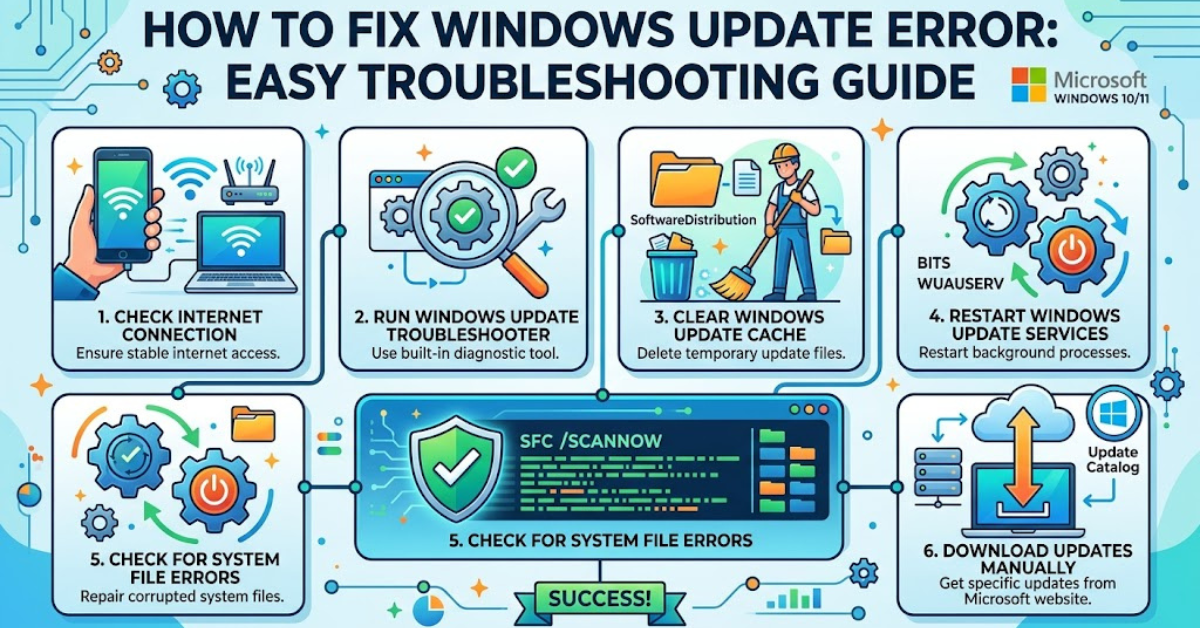
How to Fix Windows Update Error Using Built-In Troubleshooter
Windows includes a dedicated troubleshooting tool that automatically detects and repairs many update-related issues.
For Windows 11:
- Open Settings.
- Click System > Troubleshoot.
- Select Other troubleshooters.
- Find Windows Update and click Run.
For Windows 10:
- Go to Settings.
- Select Update & Security.
- Click Troubleshoot.
- Choose Additional troubleshooters.
- Select Windows Update and click Run the troubleshooter.
After the process finishes, restart your computer and check for updates again.
Check Your Internet Connection
A weak or interrupted internet connection can prevent updates from downloading correctly.
Try these quick fixes:
- Restart your Wi-Fi router.
- Switch to a wired Ethernet connection if possible.
- Disable VPN services temporarily.
- Test your internet speed.
- Try updating again after reconnecting.
A stable connection is essential for successful Windows updates.
Free Up Storage Space for Windows Updates
Windows needs sufficient free disk space to download and install updates.
To clear unnecessary files:
- Open Settings.
- Navigate to System > Storage.
- Use Temporary Files cleanup.
- Delete old downloads and unnecessary applications.
Keeping at least 20 GB of free space is generally a good practice for smooth updates.
Restart Windows Update Services
Sometimes, Windows Update services stop working correctly. Restarting them can resolve many update errors.
Follow these steps:
- Press Windows + R.
- Type services.msc and press Enter.
- Locate these services:
- Windows Update
- Background Intelligent Transfer Service (BITS)
- Cryptographic Services
- Right-click each service and select Restart.
Once completed, check for updates again.
Repair Corrupted System Files with SFC and DISM
Corrupted system files often cause Windows update errors. Windows provides command-line tools to repair them.
Run System File Checker (SFC)
- Search for Command Prompt.
- Right-click it and select Run as administrator.
- Enter:
sfc /scannowWait for the scan to complete and restart your computer.
Run DISM Tool
Open Command Prompt as administrator and type:
DISM /Online /Cleanup-Image /RestoreHealthThis command repairs the Windows system image and can solve many update issues.
Reset Windows Update Components
If standard troubleshooting doesn’t work, resetting Windows Update components can help.
This process clears the update cache and restarts essential services. You can manually reset the SoftwareDistribution and Catroot2 folders using Command Prompt or use Microsoft’s recommended troubleshooting methods.
After resetting, restart your computer and attempt the update again.
Temporarily Disable Antivirus Software
Some third-party antivirus programs may interfere with Windows updates.
Try temporarily disabling your antivirus software and then:
- Check for Windows updates.
- Install available updates.
- Turn your antivirus protection back on.
Never leave antivirus protection disabled longer than necessary.
Install Windows Updates Manually
If automatic updates keep failing, you can download updates manually.
Steps:
- Identify the Windows update error code or KB number.
- Visit the Microsoft Update Catalog website.
- Search for the update.
- Download the version compatible with your system.
- Install the file and restart your PC.
This method is especially useful when a specific update refuses to install.
Check the Windows Update Error Code
Many update problems display a unique error code such as:
- 0x80070002 – Missing or corrupted update files
- 0x800f081f – System file or .NET Framework issues
- 0x8024401c – Network connection problems
- 0x80073712 – Damaged Windows component store
Searching the exact error code can provide more targeted solutions.
Advanced Fix: Perform an In-Place Windows Repair
If every troubleshooting method fails, an in-place repair may restore Windows without deleting your personal files.
This process reinstalls Windows using the official installation media while preserving:
- Personal files
- Installed applications
- Most settings
It can resolve deeper system issues affecting Windows Update.
Tips to Prevent Windows Update Errors in the Future
Follow these best practices to reduce the chance of future problems:
- Keep enough free storage available.
- Avoid shutting down your PC during updates.
- Regularly scan your computer for malware.
- Maintain a stable internet connection.
- Keep drivers updated.
- Restart your computer periodically.
Preventive maintenance keeps Windows running more reliably.
FAQs
Why does my Windows Update keep failing?
Windows Update may fail because of corrupted system files, insufficient storage, internet problems, damaged update components, or software conflicts. Running the Windows Update troubleshooter is a good first step.
How do I force Windows Update to repair itself?
You can repair Windows Update by running the Windows Update troubleshooter, restarting update services, using SFC and DISM commands, or resetting Windows Update components.
Is it safe to delete Windows Update cache files?
Yes, deleting the Windows Update cache is generally safe. Windows will recreate the required files when it checks for updates again.
What should I do if Windows Update is stuck at 0% or 100%?
Wait at least 30–60 minutes before assuming it is frozen. If it remains stuck, restart your PC and use the Windows Update troubleshooter or repair tools.
Can outdated drivers cause Windows Update errors?
Yes, incompatible or outdated drivers can sometimes prevent updates from installing correctly. Updating your drivers may resolve the issue.
Conclusion
Understanding how to fix Windows update error allows you to solve most update failures without needing professional assistance. Start with simple solutions like running the Windows Update troubleshooter, checking your internet connection, and freeing up disk space. If the problem persists, advanced fixes such as running SFC and DISM scans, resetting update components, or performing an in-place repair can restore your system.
Keeping your PC updated is one of the best ways to maintain security, stability, and performance. If you continue experiencing issues, consider checking Microsoft’s official support resources or exploring more advanced Windows repair guides.