Have you ever been working on a Chromebook and suddenly found yourself signed out because of an accidental keyboard shortcut? You’re not alone. Many Chromebook users encounter this issue when they accidentally press Ctrl + Shift + Q + Q, a shortcut that immediately signs them out of their Google account.
If you’re searching for how to turn off Ctrl Shift QQ, you’re likely looking for a way to prevent accidental logouts and improve your Chromebook experience. In this guide, you’ll learn what the shortcut does, whether it can be disabled, alternative solutions, and practical ways to avoid triggering it unintentionally.
What Is Ctrl Shift QQ on a Chromebook?
The Ctrl + Shift + Q + Q keyboard shortcut is a built-in ChromeOS command that signs the current user out of their Chromebook.
Here’s how it works:
- Press Ctrl + Shift + Q once.
- ChromeOS displays a sign-out prompt.
- Press Q again to confirm.
- The device signs you out immediately.
Google designed this shortcut to provide a quick way to log out without navigating through menus.
Why Does It Cause Problems?
Many users accidentally trigger the shortcut when:
- Typing quickly
- Using keyboard shortcuts frequently
- Gaming on a Chromebook
- Working with spreadsheets or coding tools
- Sharing a Chromebook with students or coworkers
Because the keys are close together, accidental activation can be frustrating.
Can You Turn Off Ctrl Shift QQ?
The short answer is no.
Currently, ChromeOS does not provide a built-in setting that allows users to disable the Ctrl + Shift + Q + Q sign-out shortcut.
Unlike some operating systems that allow custom keyboard shortcut management, ChromeOS keeps certain system shortcuts locked for security and usability reasons.
Why Google Doesn’t Allow Disabling It
Several factors likely contribute to Google’s decision:
- Consistent user experience across devices
- Security considerations
- Simplified system management
- Administrative control in managed environments
As a result, there is no official toggle or setting specifically designed to turn off this shortcut.
How to Turn Off Ctrl Shift QQ: Available Workarounds
Although you cannot completely disable the shortcut through standard settings, several workarounds may help reduce accidental activation.
Use an External Keyboard Remapper
Some advanced users connect external keyboards and use remapping software on compatible systems.
Possible options include:
- Keyboard remapping tools
- Custom firmware keyboards
- Programmable mechanical keyboards
These solutions may allow you to alter key behavior before the shortcut is triggered.
However, results vary depending on your Chromebook model and setup.
Enable Search Key Modifications
ChromeOS allows limited customization of modifier keys.
To check available options:
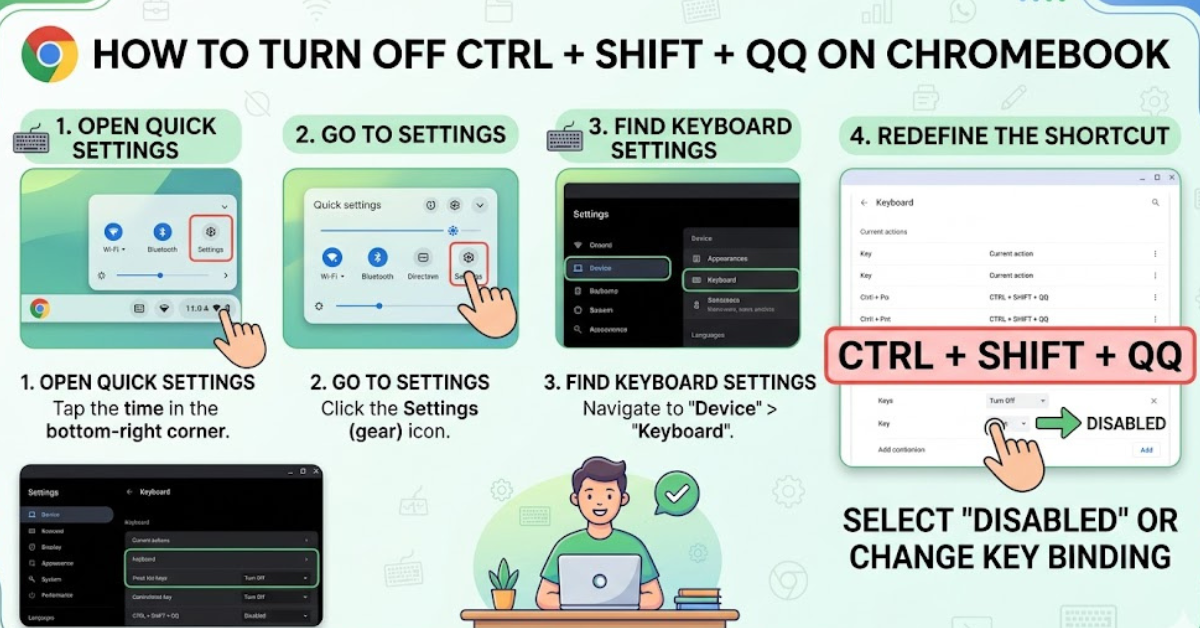
- Open Settings.
- Select Device.
- Click Keyboard.
- Review key customization settings.
You can modify keys such as:
- Search
- Ctrl
- Alt
- Escape
- Assistant key
While this won’t directly disable Ctrl Shift QQ, it may reduce accidental key combinations.
Use Chromebook Accessibility Features
Some accessibility settings can make keyboard input more deliberate.
Features include:
- Sticky Keys
- Slow Keys (on supported devices)
- Keyboard accessibility enhancements
These options can help users who frequently activate shortcuts unintentionally.
How School and Work Chromebooks Handle Ctrl Shift QQ
If you’re using a Chromebook issued by:
- A school
- A university
- A business
- A government organization
Device administrators may control certain shortcut behaviors through Chrome Enterprise or Google Admin Console policies.
Can Administrators Disable It?
In most cases, administrators cannot directly remove the system-level Ctrl Shift QQ shortcut either.
However, they can:
- Restrict sign-in options
- Manage user sessions
- Configure kiosk mode
- Apply device usage policies
If you’re using a managed Chromebook, contact your IT department for guidance.
Alternative Ways to Sign Out Safely
Since the shortcut is built into ChromeOS, it’s useful to know other methods for signing out when needed.
Method 1: Use the Quick Settings Panel
- Click the clock in the bottom-right corner.
- Open the Quick Settings menu.
- Select Sign Out.
Method 2: Lock Instead of Signing Out
If you simply need privacy:
- Press Search + L
- Or click Lock
Locking keeps your apps and tabs open while securing your session.
Method 3: Switch Users
For shared devices:
- Open Quick Settings.
- Select Sign Out or Add Person.
- Switch accounts without shutting down the device.
Common Chromebook Keyboard Shortcuts to Know
Understanding Chromebook shortcuts can help prevent accidental commands.
| Shortcut | Function |
| Ctrl + C | Copy |
| Ctrl + V | Paste |
| Ctrl + T | Open new tab |
| Ctrl + W | Close current tab |
| Search + L | Lock screen |
| Ctrl + Shift + T | Reopen closed tab |
| Ctrl + Shift + Q + Q | Sign out |
Becoming familiar with these shortcuts makes it easier to identify and avoid unwanted actions.
How to Prevent Accidental Ctrl Shift QQ Activation
Even though there is no official way to disable the shortcut, these practical strategies can help.
Adjust Your Typing Habits
Pay attention when using:
- Ctrl-based shortcuts
- Keyboard gaming controls
- Rapid text editing commands
Many accidental sign-outs occur during fast typing sessions.
Use a Different Keyboard Layout
External keyboards with larger spacing may reduce accidental key presses.
This can be particularly useful for:
- Writers
- Developers
- Students
- Office workers
Keep Work Saved Frequently
Because accidental sign-outs can interrupt workflows, consider:
- Enabling automatic cloud syncing
- Using Google Docs autosave
- Saving local files regularly
This minimizes disruption if a sign-out occurs unexpectedly.
Troubleshooting Frequent Sign-Out Issues
Sometimes users believe Ctrl Shift QQ is being triggered when another issue is causing sign-outs.
Check for:
Account Synchronization Problems
Sign-out behavior may stem from:
- Google account errors
- Expired credentials
- Sync conflicts
Keyboard Hardware Issues
A faulty keyboard can register unintended key combinations.
Signs include:
- Stuck keys
- Repeating keystrokes
- Unresponsive keys
ChromeOS Software Bugs
Occasionally, software glitches may create unusual keyboard behavior.
Try:
- Restarting your Chromebook
- Updating ChromeOS
- Performing a hardware reset if necessary
Key Takeaways
- Ctrl + Shift + Q + Q is a built-in ChromeOS sign-out shortcut.
- ChromeOS does not currently offer an official way to disable it.
- Keyboard customization options are limited.
- External keyboard remapping may help in some situations.
- Accessibility settings and careful keyboard use can reduce accidental activation.
- Managed Chromebook users should consult their administrators for device-specific options.
Frequently Asked Questions
Can I completely turn off Ctrl Shift QQ on Chromebook?
No. ChromeOS does not currently provide a built-in option to disable the Ctrl Shift QQ shortcut entirely.
Why does Ctrl Shift QQ sign me out?
Google designed the shortcut as a quick logout command. Pressing the combination twice confirms that you want to end the current session.
Is there a Chrome extension that disables Ctrl Shift QQ?
Generally, no. Browser extensions cannot override most system-level ChromeOS keyboard shortcuts.
Can schools disable Ctrl Shift QQ on student Chromebooks?
In most cases, administrators cannot directly remove this specific shortcut, although they may apply other device management policies.
What should I do if I keep pressing Ctrl Shift QQ accidentally?
Consider adjusting your typing habits, using an external keyboard, customizing available keyboard settings, or enabling accessibility features.
Does Ctrl Shift QQ delete files or data?
No. The shortcut only signs you out. Your files, apps, and account data remain intact.
Conclusion
Understanding how to turn off Ctrl Shift QQ starts with knowing an important limitation: ChromeOS does not currently allow users to disable this built-in sign-out shortcut. While that may be disappointing for users who trigger it accidentally, several practical workarounds can reduce the likelihood of unwanted logouts.
By adjusting keyboard settings, exploring accessibility options, using external keyboards, and developing shortcut awareness, you can make accidental sign-outs far less common. Apply the tips in this guide to create a smoother and less frustrating Chromebook experience.